Linespire Reflect v1.1 now works in your 2D views and layout pages. You can now render floor plans, site plans, elevations and interior elevations, and even whole layout sheets in one go. Alongside that comes a new way to edit: Touch up, which changes one spot in an image and leaves everything else exactly as it was.
This post goes through each new tool in a bit more detail: how it works and where its limits are.
Rendering your 2D views
At the top of the Setup tab there's a new switch: 3D View | Plan / Layout. The menu still captures your 3D view just like before, so nothing changes if that's all you use. Switch to Plan / Layout and Reflect captures the drawing in front of you instead: a floor plan, section, elevation, interior elevation, detail, worksheet or layout.
The panel then offers drawing presets in place of the 3D style options. Each one is tuned for a particular kind of drawing, and Reflect picks a sensible default from the view type:
- Brochure Plan and Brochure Plan + Furniture: the classic marketing floor plan. Solid walls, timber, tile and carpet finishes room by room, soft shadows, and furniture laid out from above if you choose the furnished version.
- Site Plan and Landscape Plan: roofs, driveways, lawn, planting and cast shadows seen from above, with the landscape version giving the garden the spotlight.
- Rendered Elevation and Rendered Section: colour elevations with real materials, light and shadow, while every line stays exactly where your drawing put it.
- Rendered Joinery Elevation: interior elevations of kitchens, bathrooms, laundries and robes, with cabinetry, benchtops, tiles and fixtures rendered in.
- Rendered Perspective: for 3D views placed on a layout, so they match the rest of the sheet.
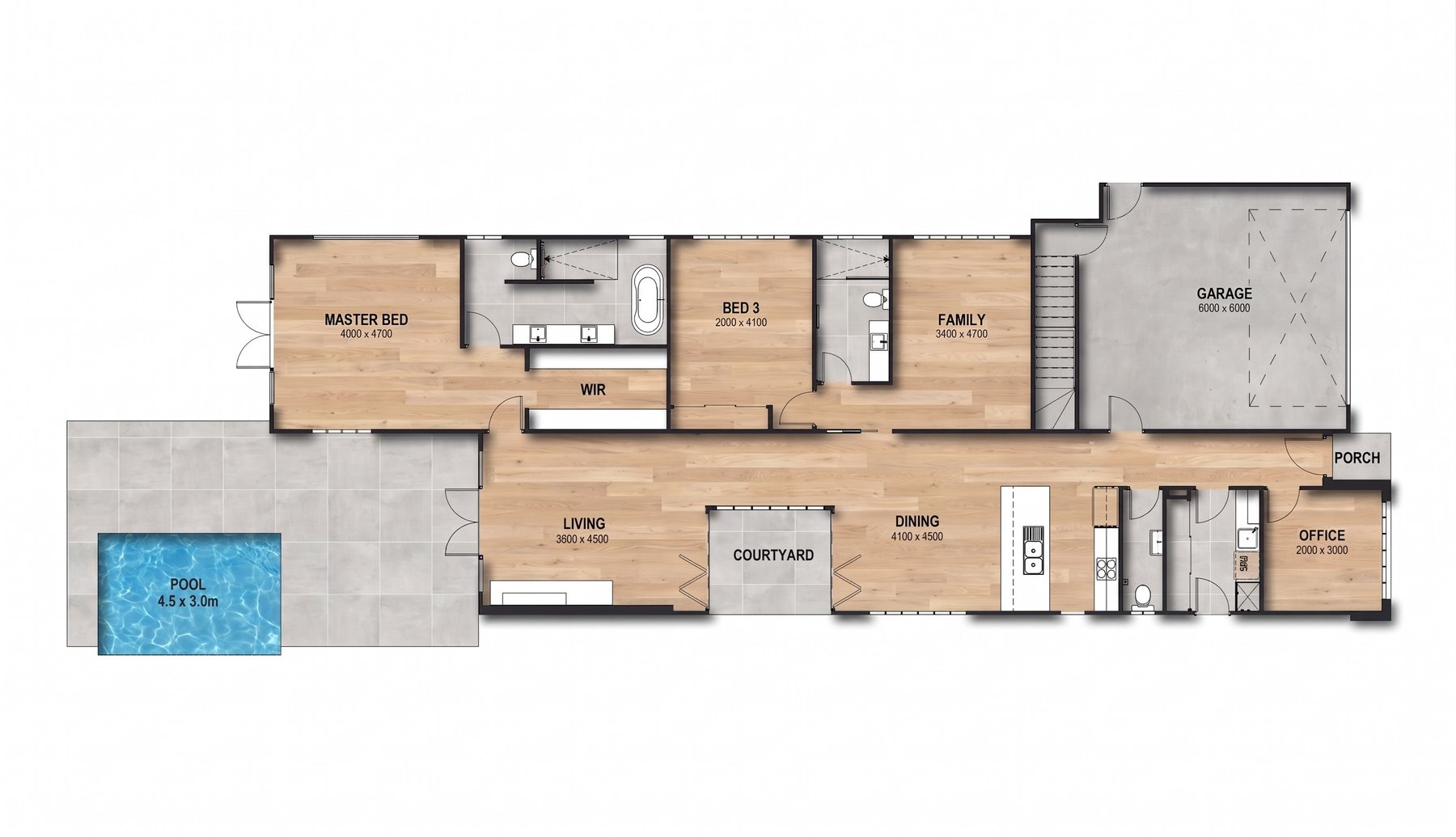
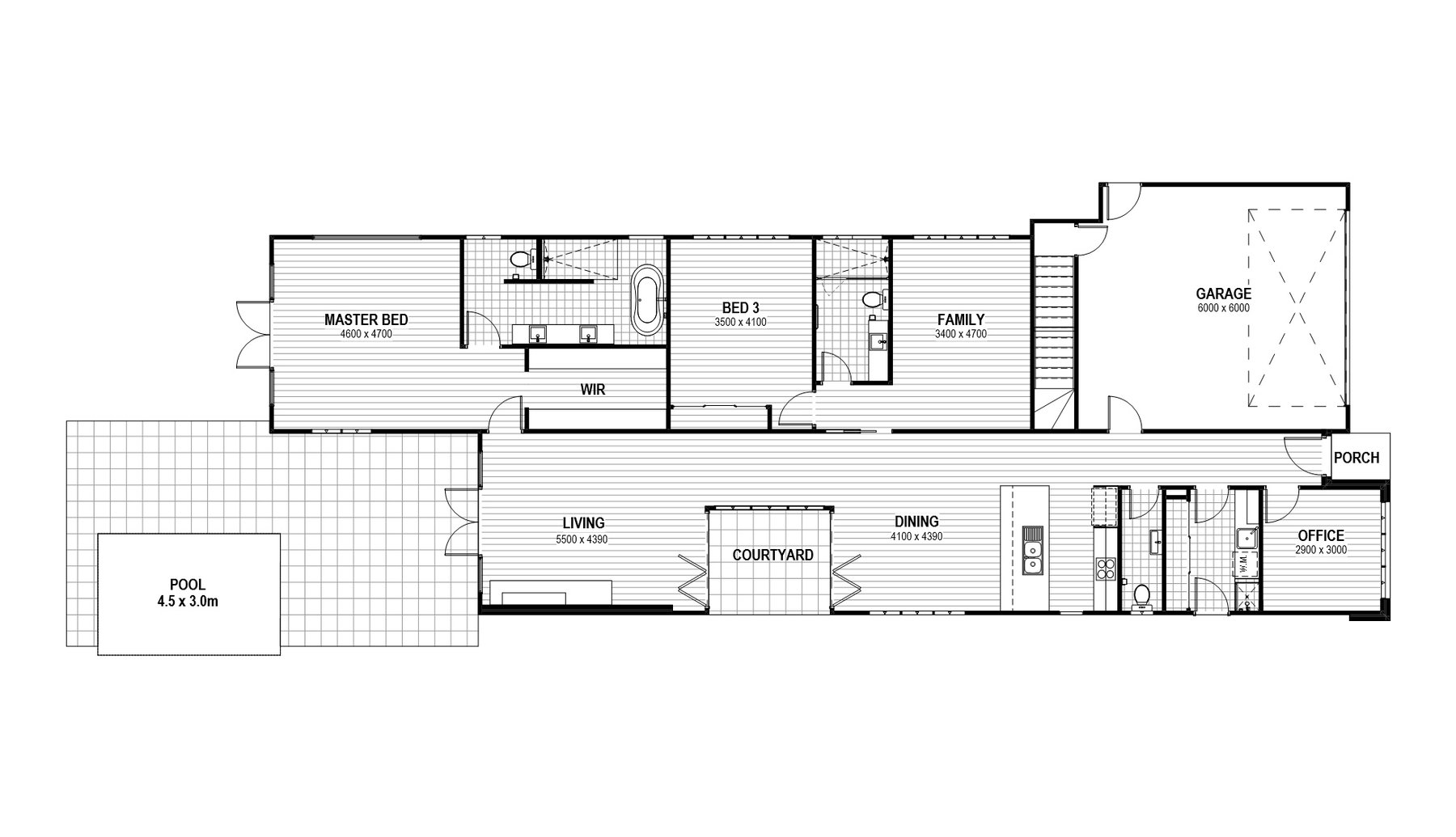
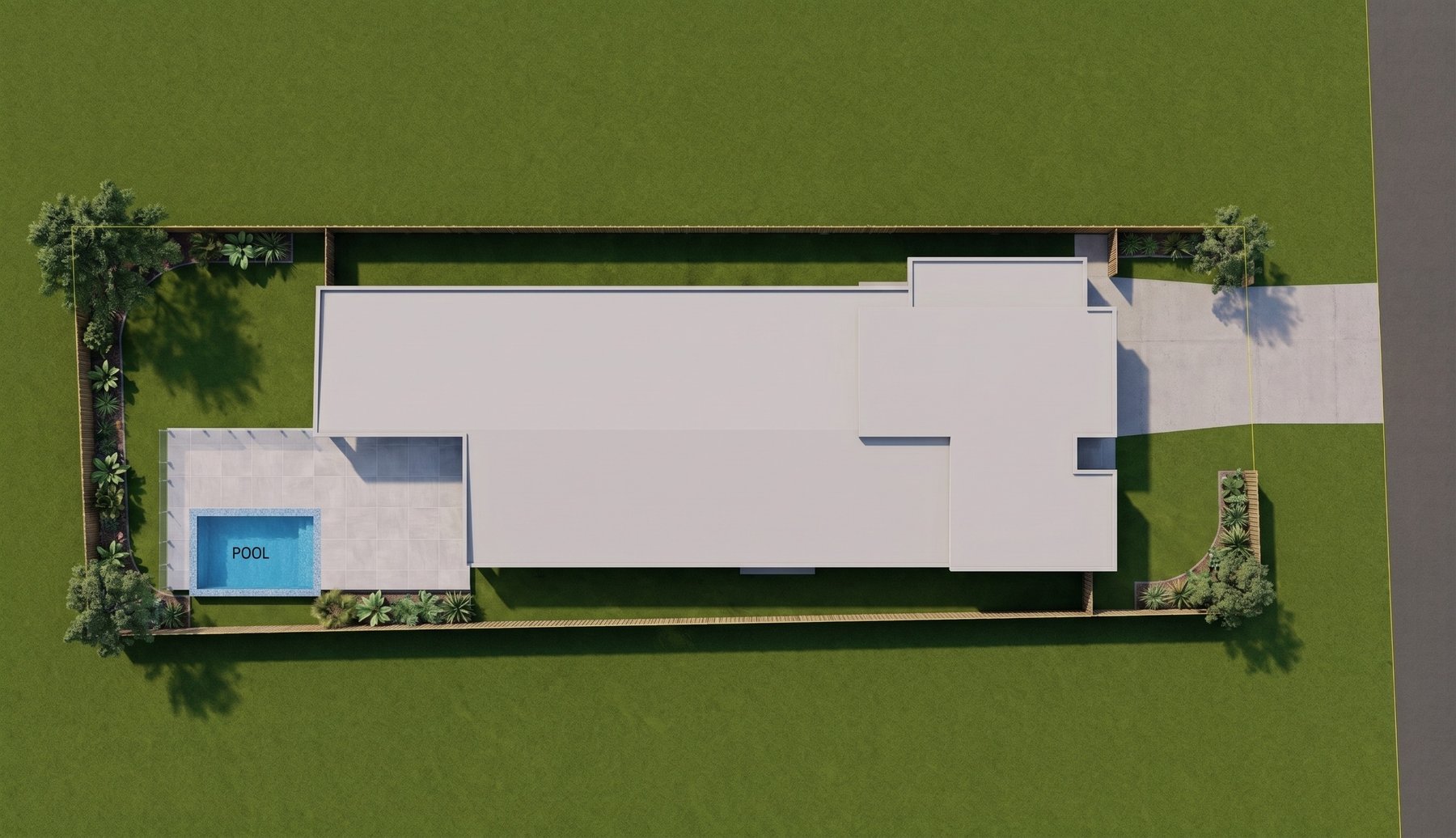
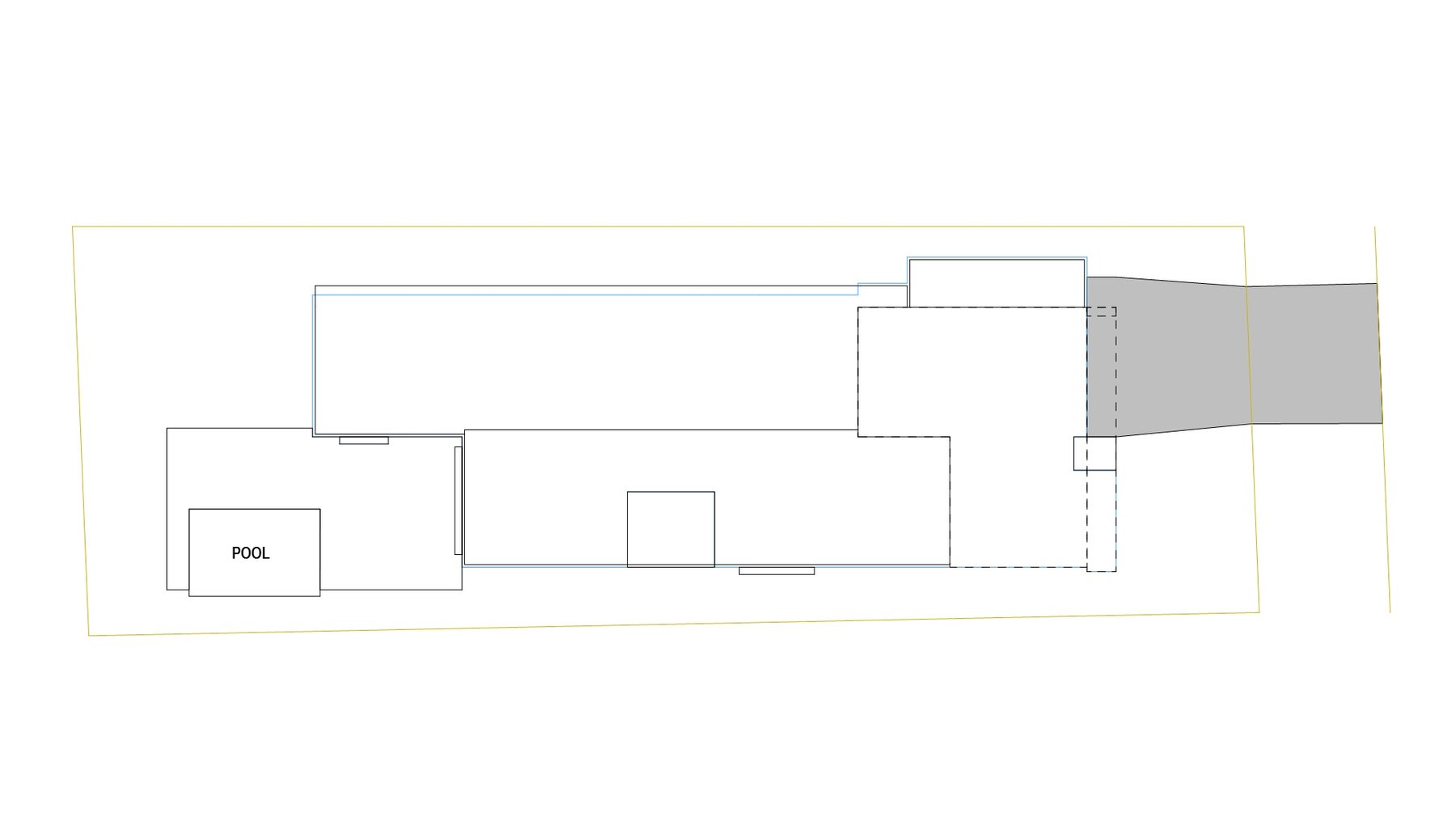
Drawings render at 2K (1 credit) or 4K (2 credits). The prompt box works the same way as for 3D: describe your materials and finishes, such as "spotted gum flooring, white subway tiles in wet areas, Colorbond Monument roof", and Reflect applies them to the drawing.
Make the presets your own
The built-in presets are a starting point, so feel free to make your own. Under the preset list, the Preset Prompt box shows the exact wording each preset sends to the AI, and you can edit it. Change it for one render, or click Save as Drawing Preset to keep your version. Your presets appear under My presets for the drawings they suit (plans, elevations, sections, or any drawing), and they sync to your account just like the 3D style presets. If your office has a house style for brochure plans, or you never want furniture in your joinery elevations, set it up once and reuse it.
One important difference from 3D: a drawing render has to keep your linework exactly where it is, so it can sit back on your layout and still line up. That's why there's no aspect ratio crop for drawings, and why the drawing presets ask the AI to stay much closer to your geometry than a 3D render does.
Rendering an entire layout in one go
This is the feature I'm most excited about. Open a layout, click Capture Layout, and Reflect shows your sheet with a numbered frame around every drawing. Tick the ones you want rendered and click Render.
All the drawings you pick are rendered together, in a single request. That's what makes the set feel like one project: the AI chooses one set of materials and finishes and uses it everywhere, so the kitchen benchtop is the same stone in every kitchen view and the bathroom tiles match from wall to wall. Reflect also tells the AI the name of each drawing, so a prompt like "marble splashback in the kitchen, terrazzo floor in the bathrooms" lands in the right rooms.
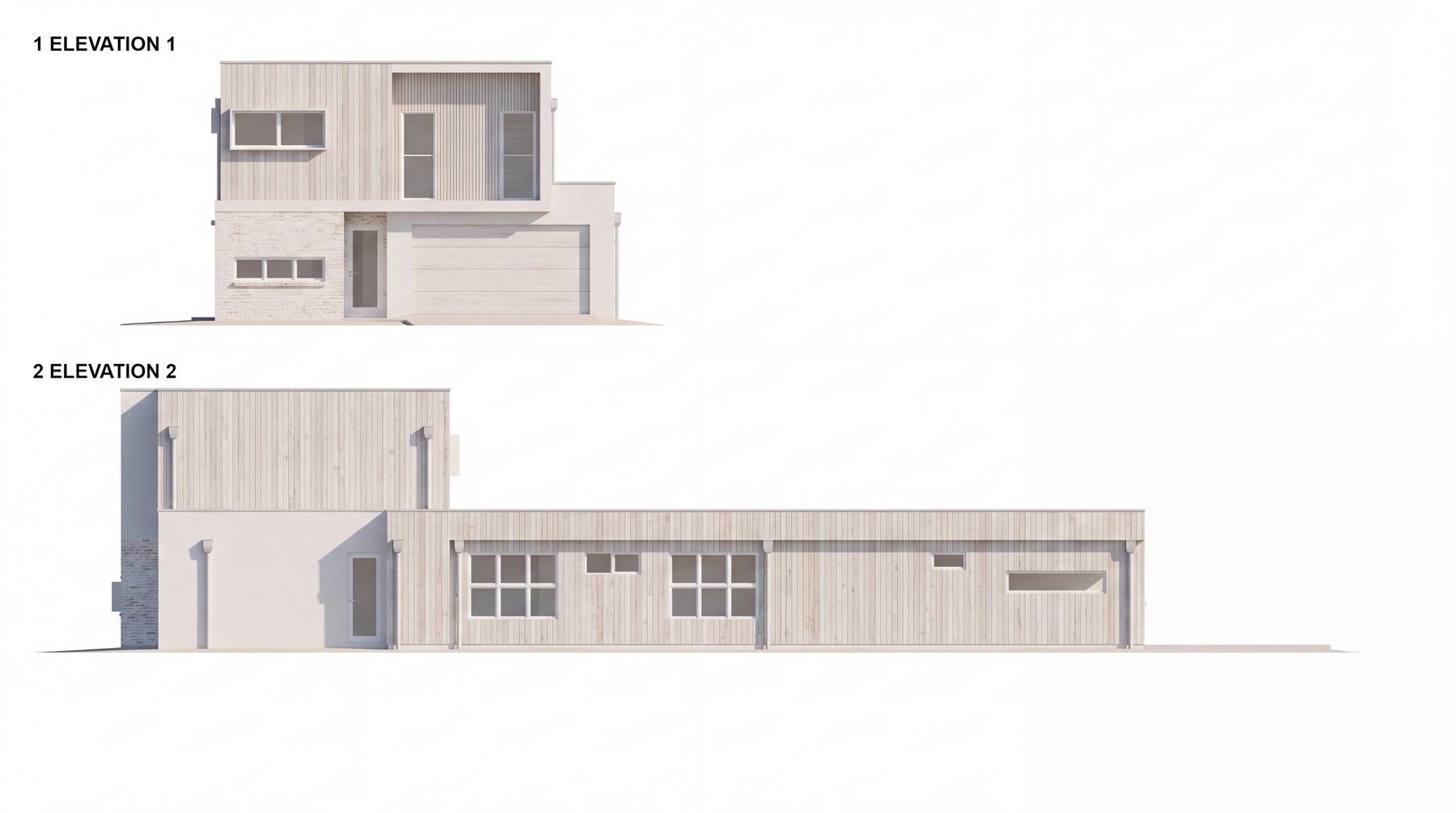
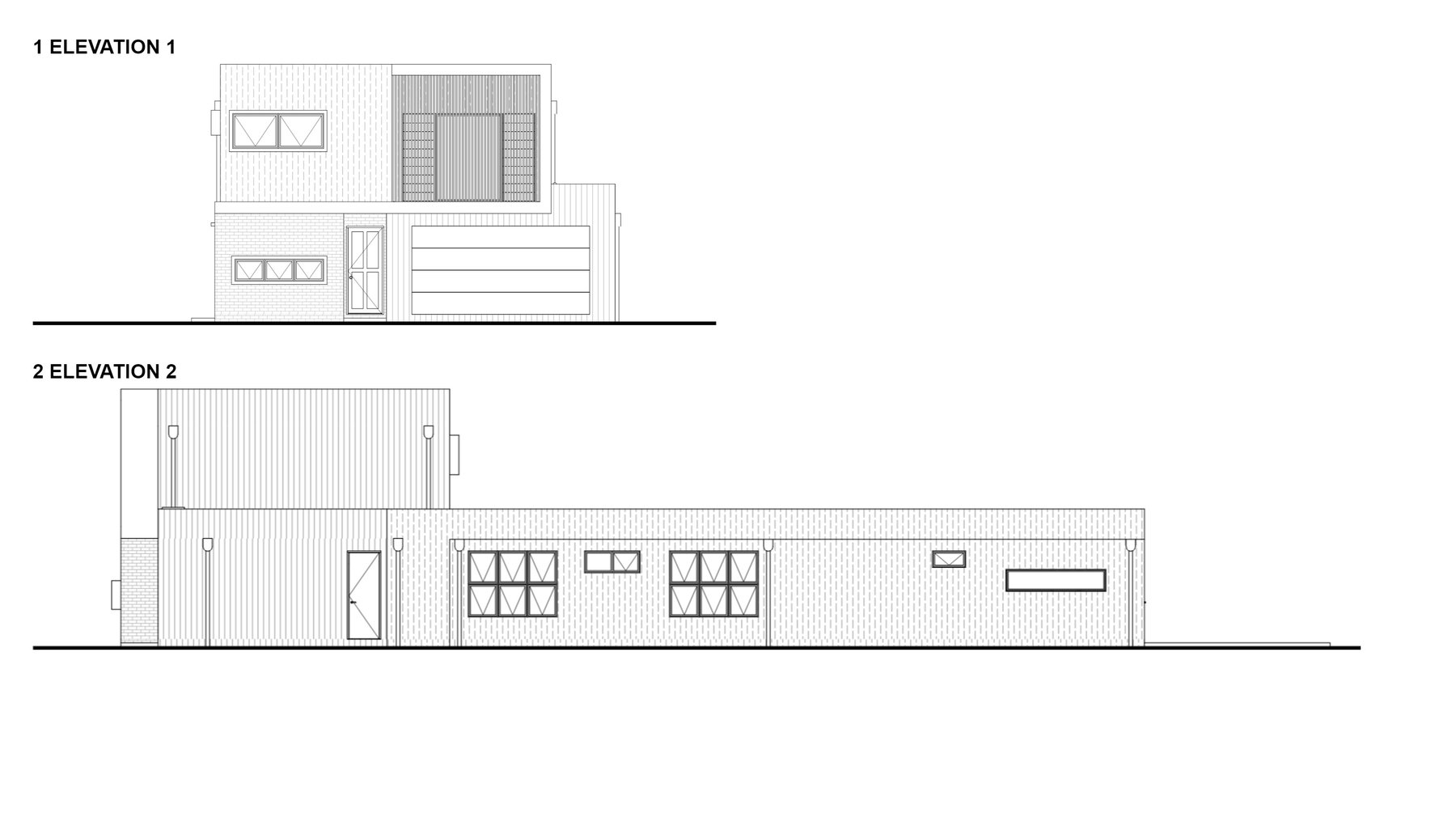
When it's done, you'll see a preview of the finished sheet with every render in its frame. Then Place on Layout puts it back into Archicad:
- New layout copy: a new "<your layout> - Rendered" sheet right after the original, with each render in place and the drawing titles kept. Your original sheet isn't touched, so you get a technical sheet and a presentation sheet side by side. This is the one I use most.
- Over the drawings: places each render on top of its drawing on the original sheet.
- Under the drawings: places each render behind its drawing, so your linework sits over the colour. Best for drawings without solid fills.
If one drawing comes out wrong, you don't have to re-render the whole sheet: use Apply edit to to edit just that drawing. And layout renders re-open from History with the sheet intact, so you can come back to them later.
Setting expectations
Rendering everything together keeps a set consistent, but the AI is still interpreting your drawings, and the more you ask it to invent, the more creative it gets. Furniture and fixtures are where it slips most: a furnished plan might park the cars sideways in the garage, or an interior elevation might put the freestanding bath on the wrong wall.
A few habits make a big difference:
- Model what needs to be exact. The AI follows your geometry far more reliably than your words. Even a simple placeholder object works better than describing it in the prompt.
- Name your drawings clearly. "ENSUITE 01" gives the AI more to go on than "IE-07".
- Describe materials, not layouts. "Black tapware, white oak vanity" is reliable. Asking it to add or move things is where the surprises come from.
- Fix the odd one out. Edit a single drawing, or use Touch up for one spot, rather than re-rendering everything.
Touch up: edit just one spot
If you've edited the same render a few times, you've probably noticed it getting softer and a little mushy each time. That's because every edit redraws the whole image, even when you only asked for one small change. One edit is fine. Edit the edit of an edit, and the image slowly loses detail, like photocopying a photocopy.
Touch up works more like Photoshop. Paint over (or just circle) the spot you want to change, describe the change, and only that area is redrawn. Everything else stays exactly as it was, so you can fix a detail without the rest of your render losing any quality.
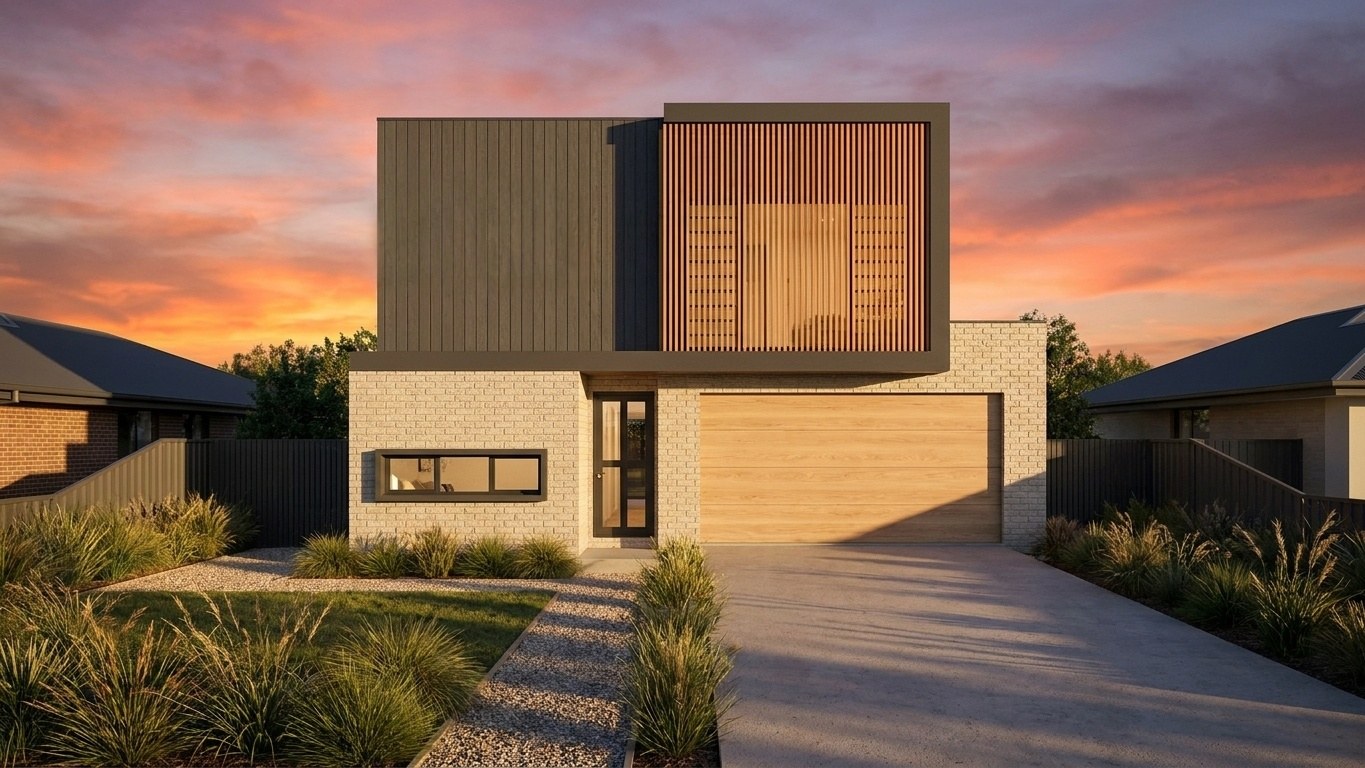
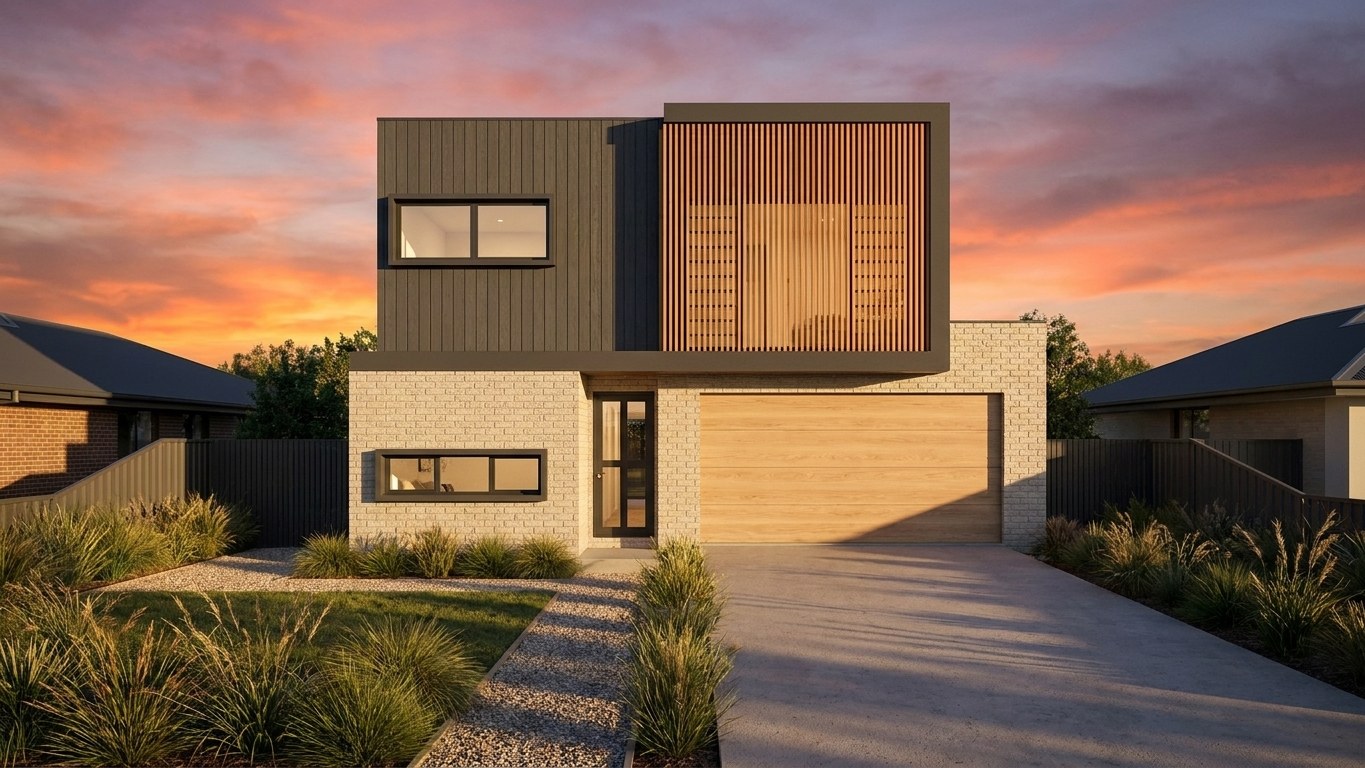
To use it, switch the Edit panel from Whole image to Touch up, paint the spot, type what you want, and click Apply. It costs 1 credit and saves to History like any other edit. Reflect also shows you how it read your mark (for example "remove the upper-floor window on the dark cladding"), so you can check it understood what you meant.
Touch up is marked beta for now, and it has some limits:
- Small areas only. It's for one spot: removing an object or some text, swapping a material or colour, tidying a detail. For anything bigger, use a whole-image edit.
- One spot at a time. Paint one area per touch-up for the best detail.
- A faint seam is possible. The new patch sits next to your original pixels, and up close you can sometimes spot a slight difference. At normal viewing size it's very hard to see, and I'm already working on making the blend even smoother.
- Whole-image changes still need a whole-image edit. Things like time of day, weather and lighting affect every pixel.
And for whole-image edits, Reflect now reminds you from the third edit onwards that you'll get a sharper result by going back to the original render and making all your changes in one go, with a button that opens it straight from History.
Everything else in 1.1
- Before/after shows each edit. The comparison slider now compares an edit with the image before it, so you can see exactly what each edit changed.
- Prioritise Camera Angle. A new switch that asks the AI to hold your exact view. It's off by default because, on an awkward view, it can make renders look flat or unrealistic. Turn it on when the exact angle matters most, and tap "Why does it move?" for tips on setting up views the AI matches best.
- Tips as you type. Short tips pop up when your prompt is likely to hit a known limitation, so you can adjust before you spend a credit.
- Thumbs up and down. Rate any result. A thumbs down lets you send the image, your prompt and a note straight to support so we can help.
- Clearer History. History items are now labelled 3D View, 2D View, Layout or Animation.
- Settings in the panel. Your licence key and save folder now live behind the gear icon.
- Archicad 30. In case you missed 1.0.3: Reflect now runs on Archicad 30 on Windows and Mac, alongside Archicad 23 to 29 on Windows and 26 to 29 on Mac.
- Fixes. An occasional crash when saving and closing Archicad, picked Animate frames being ignored, and "Connection Failed" on slow edits.
Getting the update
Reflect will show an update message the next time you open it, or you can download 1.1 from your dashboard and install it the same way as before. The full list of changes is in the release notes.
This update grew out of conversations with architects and designers using Reflect day to day, so please keep the feedback coming. Use the thumbs down when something misses, or just reply to the update email. I'd especially love to see what you make with the layout rendering.
Happy rendering,
Michael