Getting Started with Linespire Reflect
Follow these steps to get the add-on running in your Archicad environment.
Installation & Setup
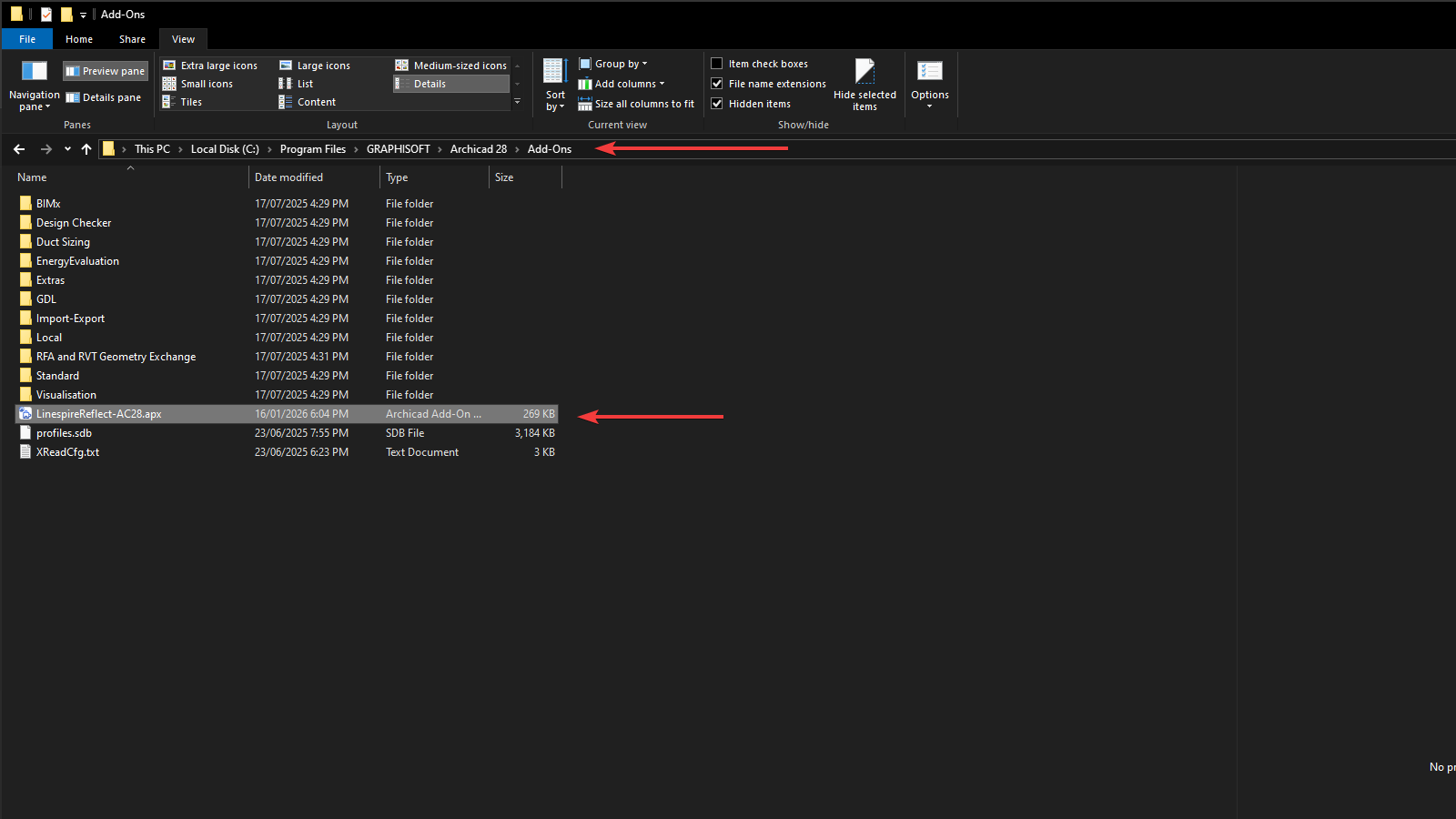
1. Organize your Add-on
Action:Move the downloaded LinespireReflect-AC28.apx into your Archicad 'Add-Ons' folder.
2. Activate via Add-On Manager
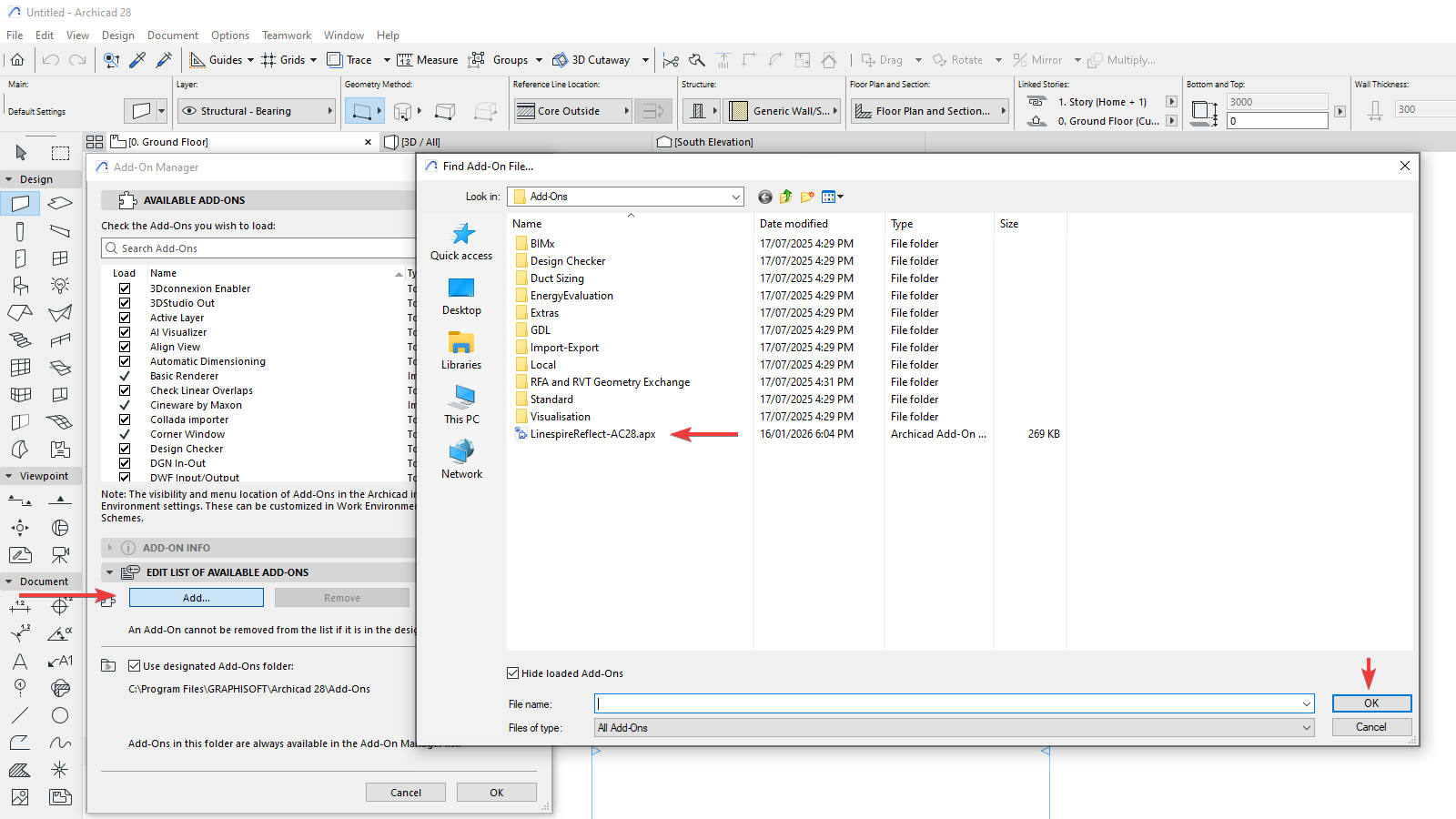
Action:In Archicad, go to Options > Add-On Manager.
Action:Click Add..., select the .apx file, and click OK to refresh.
Note:You can skip this step by restarting Archicad. Add-Ons in the folder will automatically load when Archicad starts.
3. License Verification
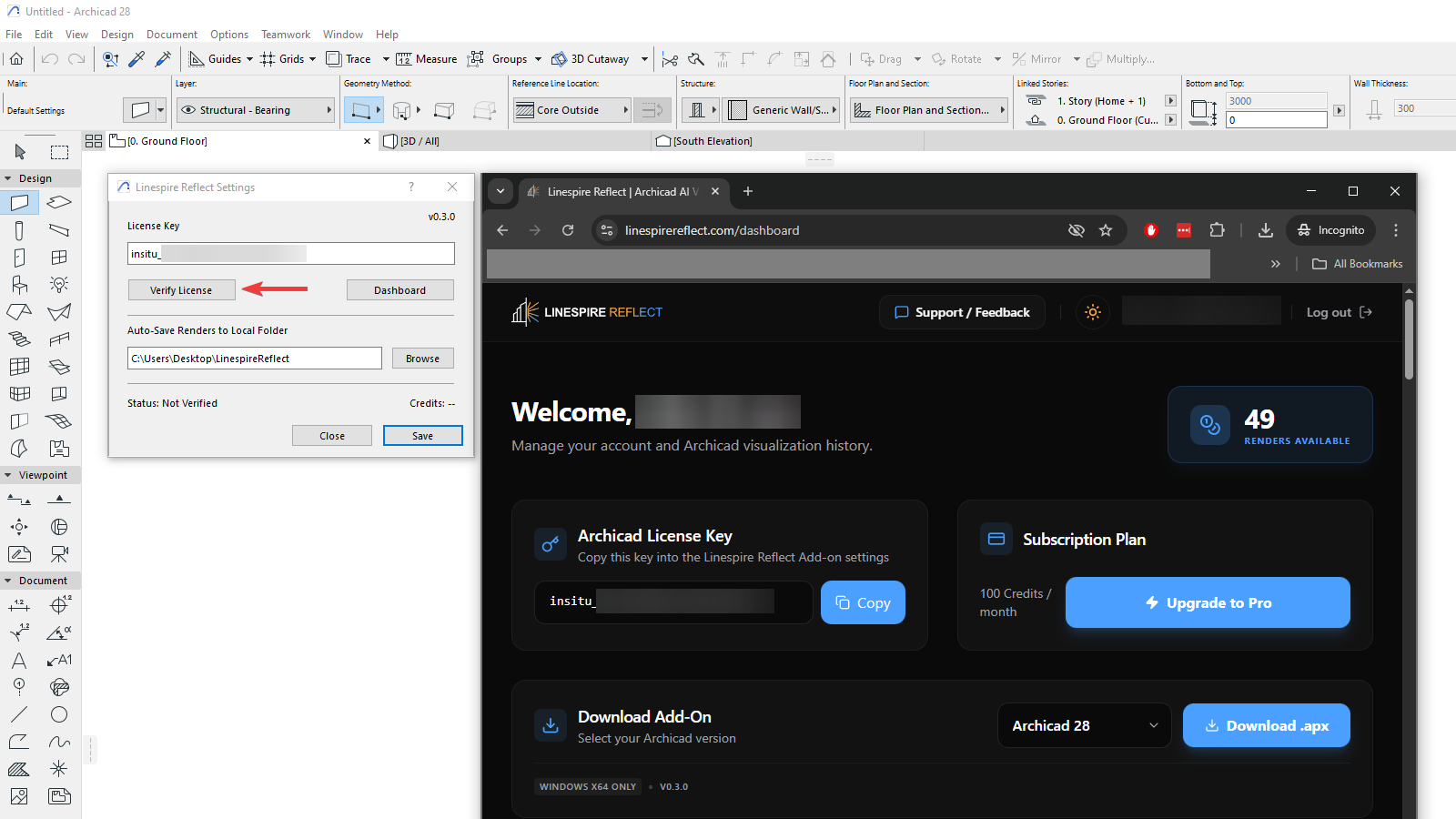
Action:Navigate to Options > Linespire Reflect > Settings.
Action:Copy your key from the Linespire Dashboard and click Verify License.
Capturing Your First Render
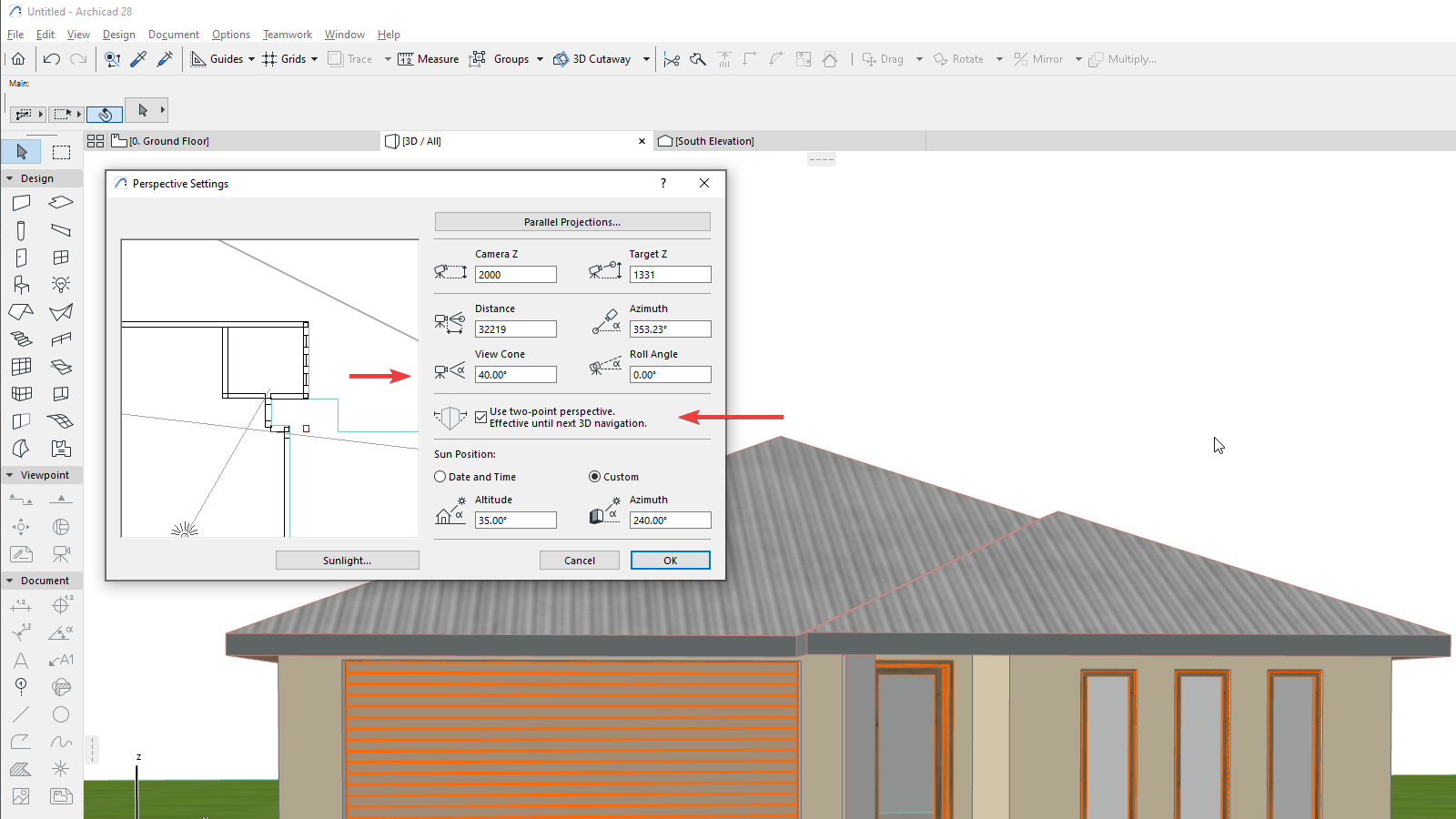
1. Prepare your 3D View
Pro-Tip: Compose your shot in the 3D window first. Use Two-Point Perspective and a View Cone of 40°-60° for the most realistic architectural results.
2. Trigger the Render
Action:Go to Options > Linespire Reflect > Capture Render.
Action:Enter your prompt (e.g., "modern suburban house, colorbond roof in monument colour, cottage garden") and click Render.
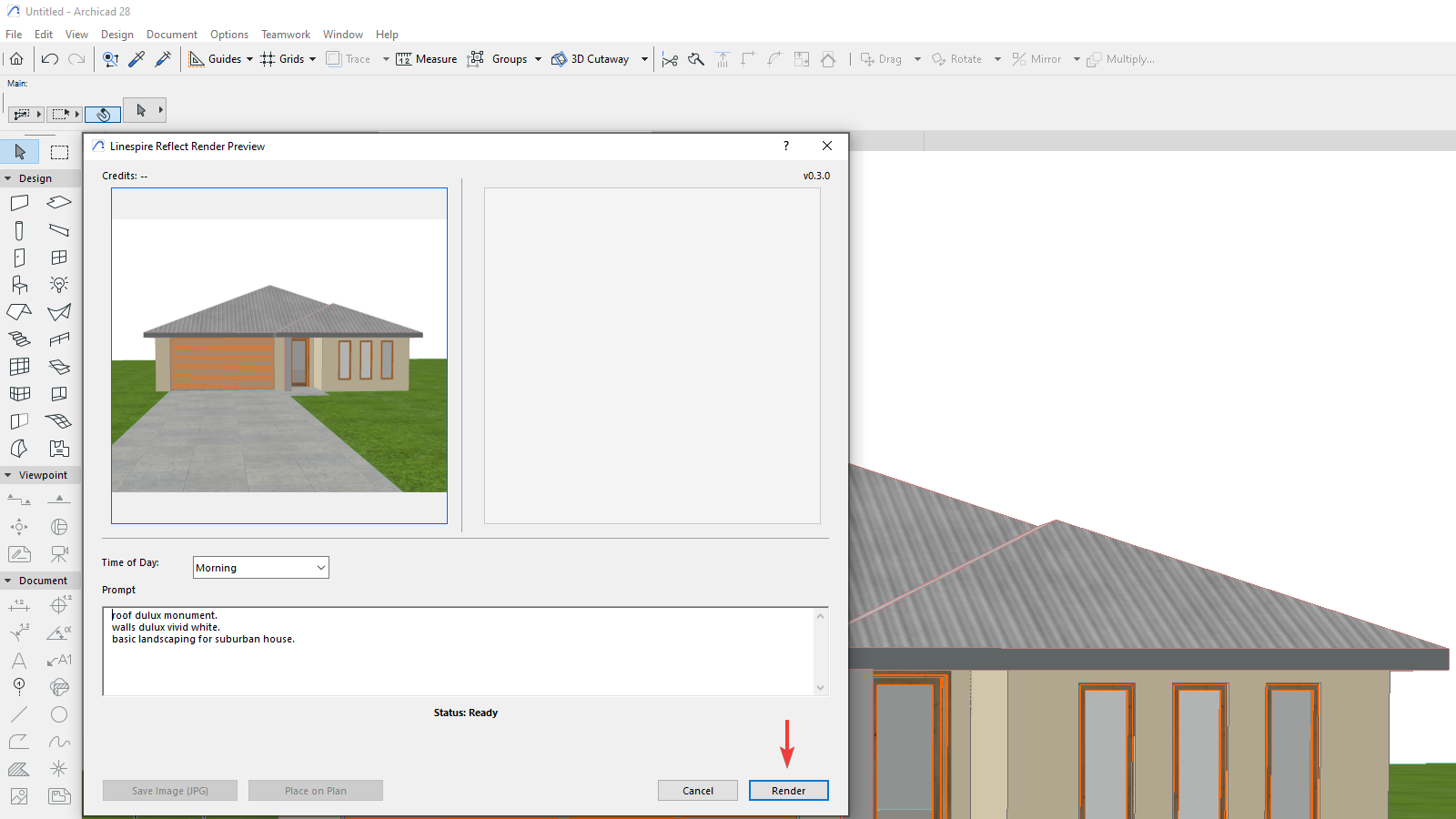
3. Review & Save
Renders take approx. 20-40 seconds to generate. Once ready it will appear in the right hand panel. You can save it locally, place directly on layout or check your web dashboard for your history.
Ready to optimize your workflow?
Learn how to write better prompts and get consistent results for your architectural visualizations.
Read Best Practices